Hermes Agent
Hermes Agent 是 Nous Research 开源的自主 AI 智能体框架,支持自我进化、跨会话持久记忆和多平台接入。
- GitHub 仓库:https://github.com/nousresearch/hermes-agent
- Hermes Agent 官网:https://hermes-agent.nousresearch.com/
Hermes Agent 支持自由切换任意大模型,包括 Nous Portal、OpenRouter(200+ 模型)、OpenAI、GLM、Kimi、MiniMax 等,执行 hermes model 即可切换,无需改代码、无厂商锁定。
环境准备
- Windows 10:需要2004(内部版本19041及更高版本)及更高版本
- Windows11:全版本支持
WSL(Windows Subsystem for Linux)
WSL,即Windows Subsystem for Linux,是Windows 10中的一个功能强大的子系统,它允许用户在Windows环境中直接运行Linux操作系统和应用程序。这意味着,无需设置复杂的虚拟机或进行双系统启动,开发人员和用户就可以在Windows上使用Linux的各种命令行工具、实用程序和应用。
- Hyper-V是微软推出的一款虚拟化技术,能够在Windows操作系统上创建和运行虚拟机。它是微软第一个采用类似Vmware ESXi和Citrix Xen的基于hypervisor的技术。通过Hyper-V,用户可以在单个物理服务器上运行多个虚拟机,每个虚拟机都有自己的操作系统和应用程序
- 适用于 Linux 的 Windows 子系统(WSL) 是 Windows 提供的一项功能,允许用户在不使用虚拟机或双系统的情况下,在 Windows 上运行完整的 Linux 环境。它为开发者提供了在 Windows 和 Linux 之间无缝切换的高效体验。
- 虚拟机平台(Virtual Machine Platform,简称 VMP)是 Windows 10/11 内置的轻量级虚拟化组件,主要为 WSL2(Windows Subsystem for Linux 2) 和 Windows Sandbox 等功能提供底层支持。它基于 Hyper-V 技术,但不包含完整的虚拟机管理工具,因此用户无法直接用它创建和管理传统虚拟机
WSL安装步骤
启用Windows功能开启 :Hyper-V 适用于 Linux 的 Windows 子系统 虚拟机平台
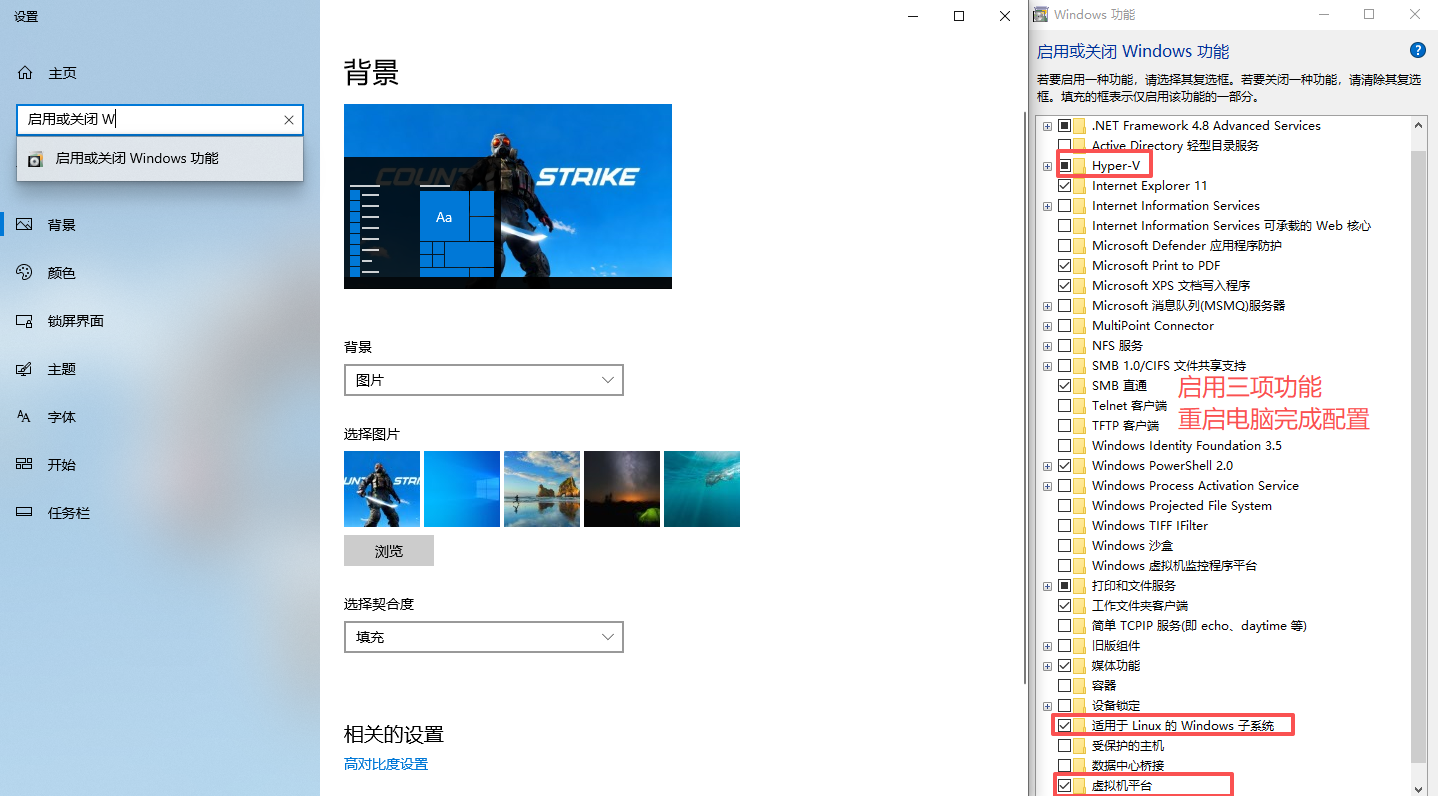
- 更新并配置wsl 注:下载和安装用科学更快
#管理员运行powershell
dism.exe /online /enable-feature /featurename:Microsoft-Windows-Subsystem-Linux /all /norestart  #启用wsl
dism.exe /online /enable-feature /featurename:VirtualMachinePlatform /all /norestart  #启用虚拟机平台
wsl --status #查看状态
wsl --update --web-download #下载适用于Linux的Windows子系统
wsl --list --online  #查看可用列表
wsl --install -d Ubuntu-22.04 安装指定发行版、以22.04为例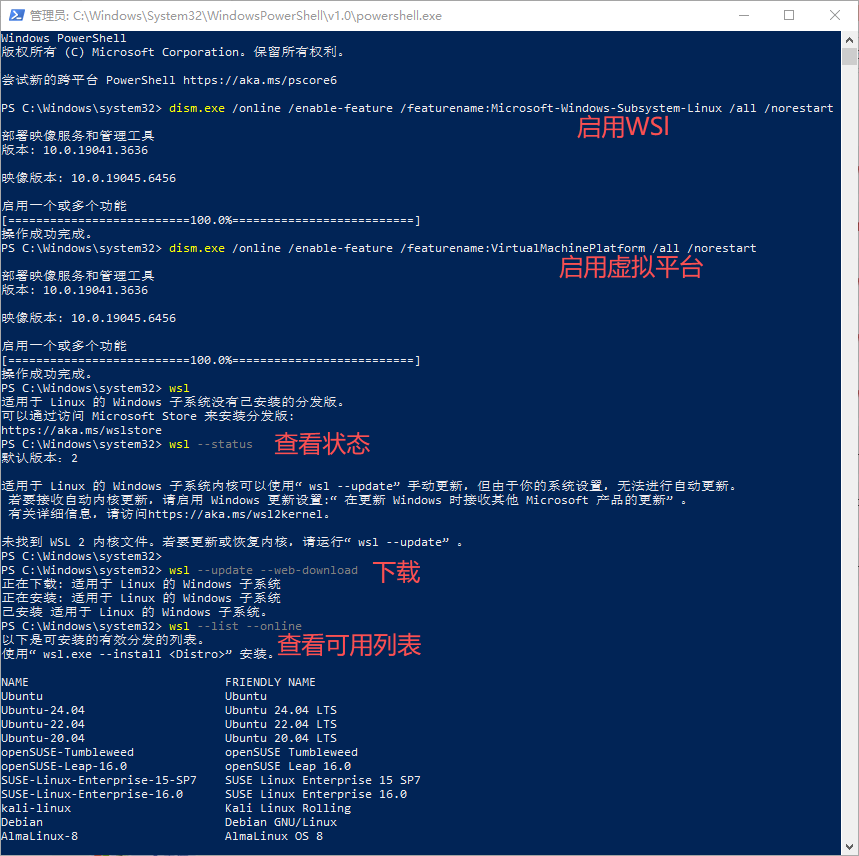
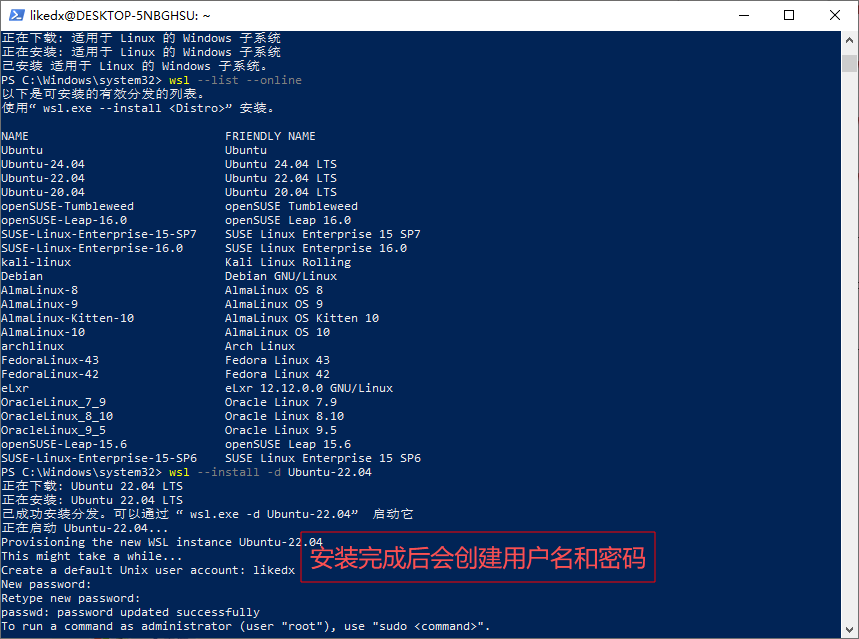
安装hermes
安装前唯一需要手动准备的工具是 Git
# Ubuntu/Debian
sudo apt install git

# macOS(通过 Homebrew)
brew install git

# 验证
git --version
一键安装(过程省略)
uv、Python 3.11、Node.js v22、ripgrep、ffmpeg 等均由安装脚本自动处理。
curl -fsSL https://raw.githubusercontent.com/NousResearch/hermes-agent/main/scripts/install.sh | bash 安装完成后,使环境变量生效
source ~/.bashrc
# 如果你使用 zsh
source ~/.zshrc| 依赖 | 版本 | 用途 |
|---|---|---|
| uv | 最新版 | Python 包管理器 |
| Python | 3.11 | 运行时环境 |
| Node.js | v22 | 前端工具链 |
| ripgrep | 最新版 | 高速文件内容搜索 |
| ffmpeg | 最新版 | 音视频处理(语音功能) |
验证安装
hermes doctorhermes doctor 会检查所有依赖和配置项,输出类似:
✓ Python 3.11.9
✓ Node.js v22.4.0
✓ uv 0.4.1
✓ ripgrep 14.1.0
✓ ffmpeg 6.1.1
✓ ~/.hermes 目录结构
✓ ~/.hermes/.env 配置文件
⚠ 未检测到 API Key,请运行 hermes setup
手动安装
1.克隆仓库(科学更方便)
git clone --recurse-submodules https://github.com/NousResearch/hermes-agent.git2.解压
这个步骤是我让龙虾帮我git到本地的,没有科学这一步会比较麻烦
sudo chown -R likedx:likedx ~/hermes-agent #likedx为你的用户名字 修改权限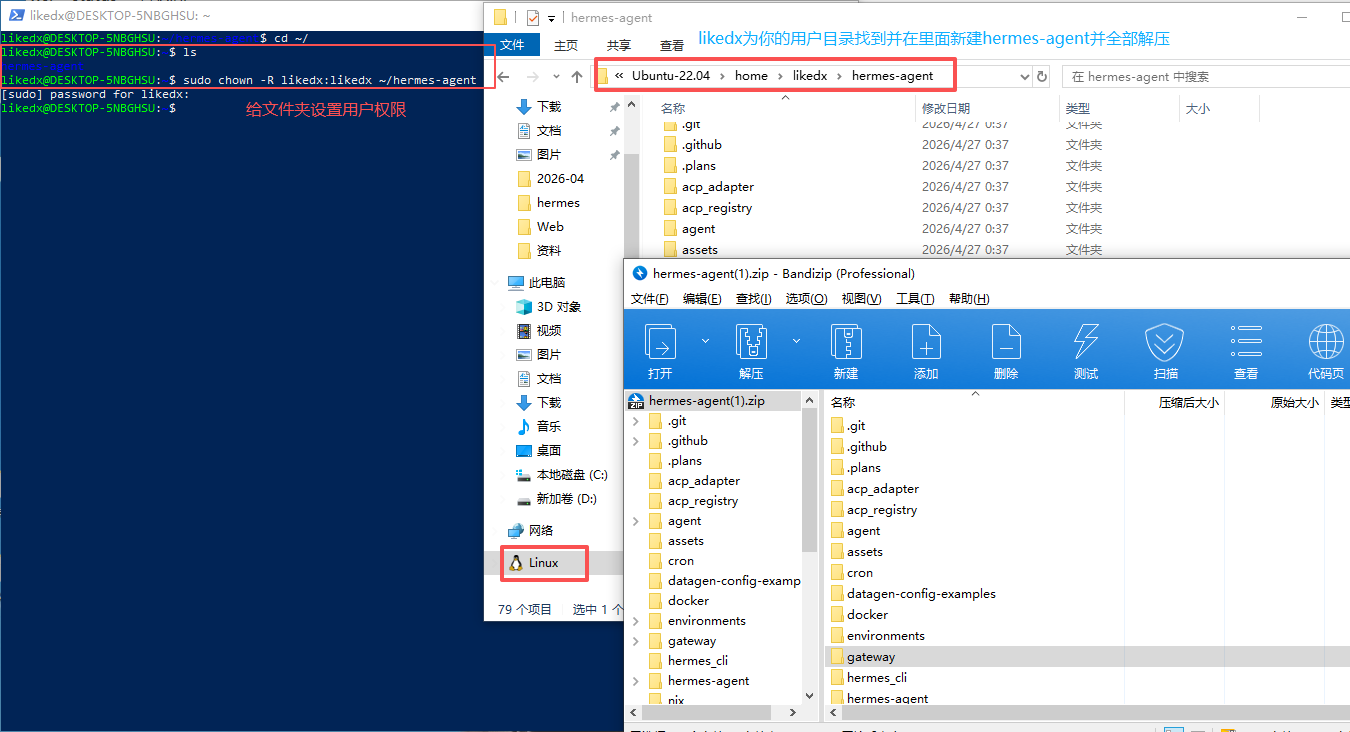
3.安装依赖
curl -LsSf https://astral.sh/uv/install.sh | sh #安装uv
source ~/.bashrc #刷新环境变量

uv venv .venv --python 3.11 #使用uv工具创建一个名为.venv 的 Python 虚拟环境,并且指定该环境使用的Python版本为3.11
uv pip install -e . #使用uv内置的pip安装

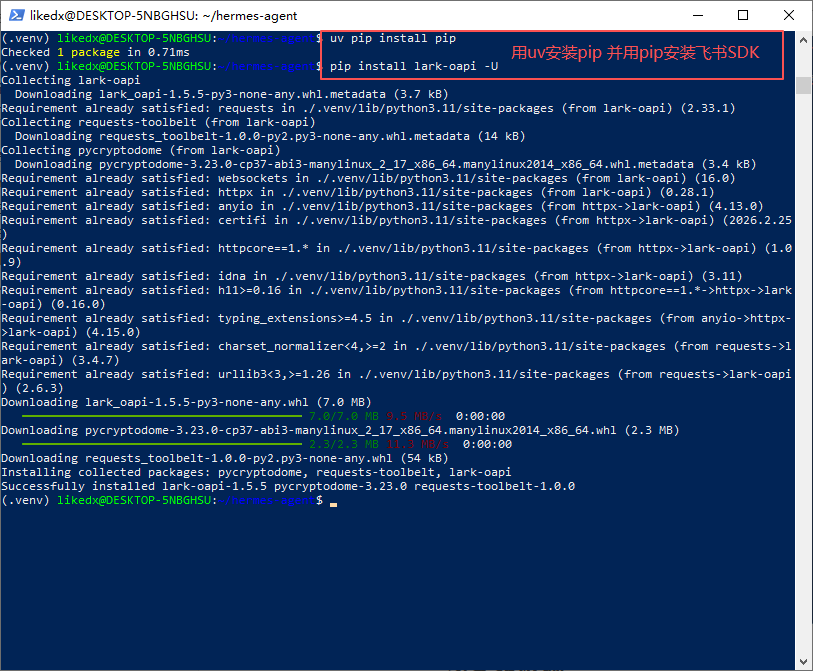
uv pip install pip  #用pip比较方便的话可以把使用uv安装pip
pip install lark-oapi -U #安装飞书SDK 用到飞书必装 后续对接飞书也是需要安装的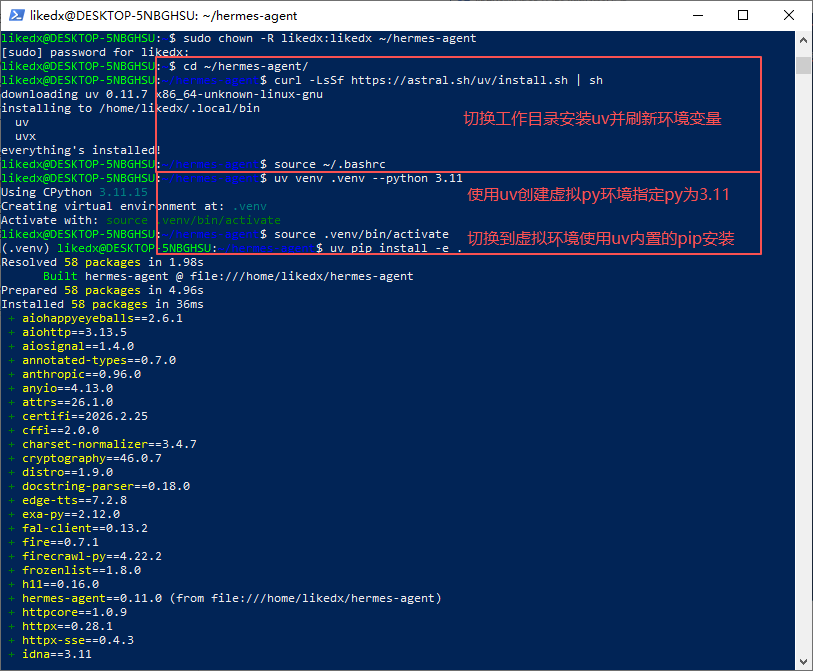
配置hermes
(.venv) likedx@DESKTOP-5NBGHSU:~/hermes-agent$ hermes

It looks like Hermes isn't configured yet -- no API keys or providers found.

  Run:  hermes setup

Run setup now? [Y/n]Hermes检查发现配置文件中没有设置任何 API 密钥或服务提供商(例如 OpenAI、Anthropic 等 AI 服务的认证信息) 提示你需要执行 hermes setup 命令来启动交互式配置向导。输入y配置
How would you like to set up Hermes?
  ↑↓ navigate  ENTER/SPACE select  ESC cancel

 → (●) Quick setup — provider, model & messaging (recommended)
   (○) Full setup — configure everything
Quick setup — provider, model & messaging (recommended)
- 推荐选项。只配置最核心的内容:选择 AI 服务商(provider,如 OpenAI、Anthropic 等)、选择具体模型(model)、以及基本消息设置。
- 适合大多数用户,快速上手,后续还可以微调。
Full setup — configure everything
- 完整配置。除了上述内容,还包括高级参数(如温度、最大 token 数、系统提示词、代理、缓存行为等)。
- 适合有特殊需求或希望一次性调优所有选项的用户。
如果你是第一次使用 Hermes,推荐选择第一项 Quick setup。它已经覆盖日常使用所需,且设置更简单。以后如果有需要,可以随时运行 hermes setup 重新进入配置并修改细节。
Select provider:
  ↑↓ navigate  ENTER/SPACE select  ESC cancel

   (●) Nous Portal (Nous Research subscription)
   (○) OpenRouter (100+ models, pay-per-use)
   (○) Vercel AI Gateway (200+ models, $5 free credit, no markup)
   (○) Anthropic (Claude models — API key or Claude Code)
   (○) OpenAI Codex
 → (○) Xiaomi MiMo (MiMo-V2.5 and V2 models — pro, omni, flash)
   (○) NVIDIA NIM (Nemotron models — build.nvidia.com or local NIM)
   (○) Qwen OAuth (reuses local Qwen CLI login)
   (○) GitHub Copilot (uses GITHUB_TOKEN or gh auth token)
   (○) GitHub Copilot ACP (spawns `copilot --acp --stdio`)
   (○) Hugging Face Inference Providers (20+ open models)
   (○) Google AI Studio (Gemini models — native Gemini API)
   (○) Google Gemini via OAuth + Code Assist (free tier supported; no API key needed)
   (○) DeepSeek (DeepSeek-V3, R1, coder — direct API)
   (○) xAI (Grok models — direct API)
   (○) Z.AI / GLM (Zhipu AI direct API)
   (○) Kimi Coding Plan (api.kimi.com) & Moonshot API
   (○) Kimi / Moonshot China (Moonshot CN direct API)
   (○) StepFun Step Plan (agent/coding models via Step Plan API)
   (○) MiniMax (global direct API)
   (○) MiniMax China (domestic direct API)
   (○) Alibaba Cloud / DashScope Coding (Qwen + multi-provider)
   (○) Ollama Cloud (cloud-hosted open models — ollama.com)
   (○) Arcee AI (Trinity models — direct API)
   (○) Kilo Code (Kilo Gateway API)
   (○) OpenCode Zen (35+ curated models, pay-as-you-go)
   (○) OpenCode Go (open models, $10/month subscription)
   (○) AWS Bedrock (Claude, Nova, Llama, DeepSeek — IAM or API key)
   (○) Custom endpoint (enter URL manually)
   (○) Configure auxiliary models...
   (○) Leave unchanged
操作方式
- 按 ↑/↓ 箭头键 移动光标(高亮项前有
(●)表示选中的选项,(○)表示未选中)。 - 按 ENTER 或 SPACE 确认选择。
- 按 ESC 取消。
| 选项 | 特点 |
|---|---|
| Nous Portal | 需要订阅 Nous Research,适合喜欢社区驱动模型的人 |
| OpenRouter | 聚合 100+ 模型,按 token 付费,支持信用卡 / 加密货币,推荐 |
| Vercel AI Gateway | 200+ 模型,有 $5 免费额度,无加价,Vercel 账户即可 |
| Anthropic | Claude 系列模型,需 API Key 或 Claude Code 订阅 |
| OpenAI Codex | 专为代码场景优化的 OpenAI 模型(非标准 GPT) |
| Xiaomi MiMo | 小米的 MiMo 模型(专业版、全能版、轻量版) |
| NVIDIA NIM | NVIDIA 托管的 Nemotron 模型,或本地 NIM 部署 |
| Qwen OAuth | 复用本地通义千问 CLI 的登录状态 |
| GitHub Copilot | 使用 GitHub Token 或 gh auth 登录 |
| Hugging Face | 20+ 开源模型,需 HF Token |
| Google AI Studio | Gemini 原生 API |
| Google Gemini OAuth | 通过 OAuth 使用 Gemini + Code Assist,无需 API Key |
| DeepSeek | 深度求索 V3 / R1 / Coder,直接 API |
| xAI | Grok 模型 |
| Z.AI / GLM | 智谱 AI 直连 |
| Kimi / Moonshot | 月之暗面 Kimi 编程计划或直连 API |
| StepFun | 阶跃星辰 Step Plan API |
| MiniMax | MiniMax 全球化 API |
| Alibaba Cloud DashScope | 阿里云灵积服务(通义千问等) |
| Ollama Cloud | 云托管开源模型(由 ollama.com 提供) |
| Arcee AI | Trinity 模型 |
| Kilo Code | Kilo Gateway API |
| OpenCode Zen / Go | 聚合服务,Zen 按量付费,Go 订阅制 |
| AWS Bedrock | 企业级,支持 Claude、Llama、DeepSeek 等 |
| Custom endpoint | 手动输入任意兼容 OpenAI API 的地址 |
| Configure auxiliary models | 配置辅助模型(用于不同任务) |
| Leave unchanged | 保持现有配置(首次配置无意义) |
◆ Inference Provider
  Choose how to connect to your main chat model.
     Guide: https://hermes-agent.nousresearch.com/docs/integrations/providers

Warning: No inference provider configured. Run 'hermes model' to choose a provider and model, or set an API key (OPENROUTER_API_KEY, OPENAI_API_KEY, etc.) in ~/.hermes/.env. Falling back to auto provider detection.

  Current model:    (not set)
  Active provider:  none


No Kimi / Moonshot API key configured.
KIMI_API_KEY (or Enter to cancel):
No inference provider configured→ 没有配置任何 AI 服务提供者。- Hermes 尝试自动检测,但没找到,所以进入了手动配置模式。
- 当前你正处在配置 Kimi / Moonshot(月之暗面)这个提供者的步骤,因为它检测到之前可能选择了该项,或者因为缺少 API 密钥而主动询问。
提示 KIMI_API_KEY (or Enter to cancel): 就是要求你输入 Kimi / Moonshot 的 API 密钥。如果你有该服务的 API 密钥,粘贴进去然后回车即可完成配置。如果没有,直接按回车会取消这一步。
No Kimi / Moonshot API key configured.
KIMI_API_KEY (or Enter to cancel):
API key saved.

  Detected Kimi Coding Plan key → https://api.kimi.com/coding

Select default model:
  1. kimi-k2.6
  2. kimi-k2.5
  3. kimi-for-coding
  4. kimi-k2-thinking
  5. kimi-k2-thinking-turbo
  6. Enter custom model name
  7. Skip (keep current)

Choice [1-7] (default: skip): 1
#模型的交互 根据自己的模型选择即可
对接飞书机器人Bot
Connect a messaging platform? (Telegram, Discord, etc.)
  ↑↓ navigate  ENTER/SPACE select  ESC cancel

 → (●) Set up messaging now (recommended)
(○) Skip — set up later with 'hermes setup gateway'- Set up messaging now (recommended) —— 现在就配置消息平台。配置完成后,你可以将 Hermes 接入 Telegram、Discord、Slack 等应用,通过发送消息与 AI 交互,而不仅限于终端命令行。Hermes 会作为 bot 响应你的消息。
- Skip — set up later with 'hermes setup gateway' —— 跳过这一步。以后想配置时,可以运行
hermes setup gateway命令重新进入配置。
Select platforms to configure:
  ↑↓ navigate  SPACE toggle  ENTER confirm  ESC cancel

 → [ ] Telegram
   [ ] Discord
   [ ] Slack
   [ ] Signal
   [ ] Email
   [ ] SMS (Twilio)
   [ ] Matrix
   [ ] Mattermost
   [ ] WhatsApp
   [ ] DingTalk
   [ ] Feishu / Lark
   [ ] WeCom (Enterprise WeChat)
   [ ] WeCom Callback (Self-Built App)
   [ ] Weixin (WeChat)
   [ ] BlueBubbles (iMessage)
   [ ] QQ Bot
[ ] Webhooks (GitHub, GitLab, etc.)| 平台 | 说明 |
|---|---|
| Telegram | 推荐,Bot 创建简单(通过 @BotFather),支持私聊和群组。 |
| Discord | 适合游戏/社区服务器,需要创建 Bot 应用。 |
| Slack | 企业级团队协作,需要创建 Slack App。 |
| Signal | 注重隐私,配置稍复杂。 |
| 通过邮件收发消息(IMAP/SMTP)。 | |
| SMS (Twilio) | 短信,需要 Twilio 账户和付费。 |
| Matrix | 去中心化聊天协议。 |
| Mattermost | 自托管团队聊天。 |
| 通过 WhatsApp Business API 或第三方桥接。 | |
| DingTalk | 钉钉,国内常用。 |
| Feishu / Lark | 飞书,非常适合国内用户。 |
| WeCom (Enterprise WeChat) | 企业微信。 |
| Weixin (WeChat) | 个人微信(通常需要非官方方案,慎重)。 |
| BlueBubbles | iMessage 的第三方桥接(macOS 端需要)。 |
| QQ Bot | QQ 机器人(官方或 go-cqhttp 等)。 |
| Webhooks | 不主动接收,而是监听来自 GitHub、GitLab 等服务的 webhook 事件。 |
  How would you like to set up Feishu / Lark?
  ↑↓ navigate  ENTER/SPACE select  ESC cancel

 → (●) Scan QR code to create a new bot automatically (recommended)
(○) Enter existing App ID and App Secret manually- 扫二维码自动创建:让程序帮你自动新建一个飞书机器人,你只需要用飞书扫一下码、起个名字就行。最简单,推荐。
- 手动输入 App ID 和 App Secret:你自己去飞书开放平台创建机器人,然后把两个凭证(像账号密码一样的东西)复制粘贴进来。稍麻烦,但适合已有机器人的用户。
  How should direct messages be authorized?
  ↑↓ navigate  ENTER/SPACE select  ESC cancel

 → (●) Use DM pairing approval (recommended)
   (○) Allow all direct messages
(○) Only allow listed user IDs- Use DM pairing approval (推荐):需要你预先在终端启动一个配对流程,别人在飞书发“/pair”类似的指令才能通过。安全且灵活,推荐。
- Allow all direct messages:任何人给你机器人发私聊都能直接对话。最方便,但有被滥用的风险。
- Only allow listed user IDs:只有在白名单里的特定飞书用户 ID 能发私聊。最安全,但需要手动配置允许的人。
  How should group chats be handled?
  ↑↓ navigate  ENTER/SPACE select  ESC cancel

 → (●) Respond only when @mentioned in groups (recommended)
(○) Disable group chats- Respond only when @mentioned in groups (推荐):只有在群里 @ 机器人时,它才会回复。不 @ 就不说话,避免刷屏,推荐选择。
- Disable group chats:完全禁止在群里使用机器人,只能在私聊中使用。
  ─── 🪽 Feishu / Lark Setup ───

    Skipped (keeping current)

  Connecting to Feishu / Lark... done.

  Open this URL in Feishu / Lark on your phone:

  https://open.feishu.cn/page/launcher?user_code=96CV-NQTU&from=hermes&tp=hermes

  Tip: pip install qrcode  to display a scannable QR code here next time

  Fetching configuration results....

✓   Bot created: HermesAgent

    Skipped (keeping current)

✓   DM pairing enabled.
    Unknown users can request access; approve with `hermes pairing approve`.

    Skipped (keeping current)

    Group chats enabled (bot must be @mentioned).

Home chat ID (optional, for cron/notifications):- Home chat ID:一个飞书聊天(可以是私聊或群聊)的唯一标识。如果你设置了这个 ID,Hermes 可以把定时任务(cron)的结果或系统通知主动发送到这个聊天里。
- 可选:不填也没关系,直接按回车跳过。不影响正常对话功能(别人 @ 机器人或私聊依然能用)。
✓ 🪽 Feishu / Lark configured!
    App ID: xxxxx
    Domain: feishu
    Bot: HermesAgent

  ━━━━━━━━━━━━━━━━━━━━━━━━━━━━━━━━━━━━━━━━━━━━━━━━━━
✓ Messaging platforms configured!

Install the gateway as a systemd service? (runs in background, starts on boot) [Y/n]:- 按
Y然后回车:配置好后,你的飞书机器人会一直在线,即使关闭终端或重启电脑也会自动恢复。不建议 - 按
n回车:跳过。之后每次需要启动网关时,手动运行hermes gateway并保持终端窗口打开。
给龙虾发送指令:帮我安装飞书SKill https://open.feishu.cn/document/no_class/mcp-archive/feishu-cli-installation-guide.md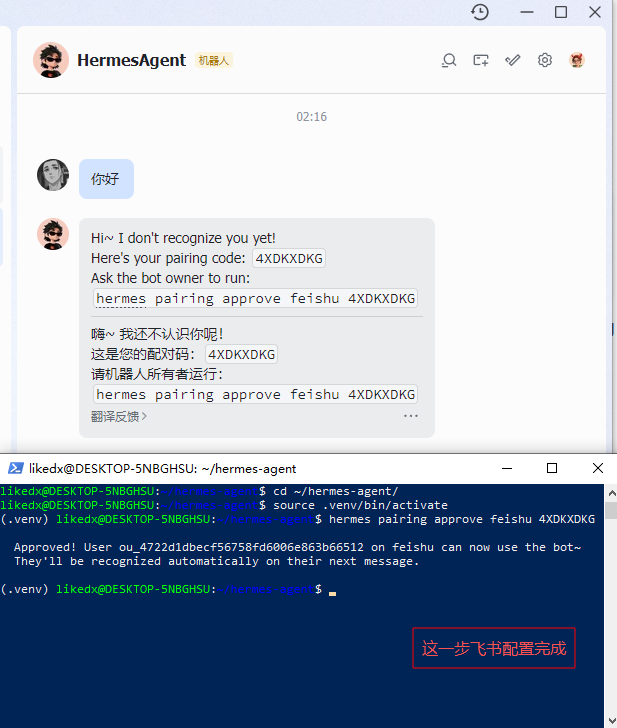
📁 All your files are in ~/.hermes/:

   Settings:  /home/likedx/.hermes/config.yaml
   API Keys:  /home/likedx/.hermes/.env
   Data:      /home/likedx/.hermes/cron/, sessions/, logs/

────────────────────────────────────────────────────────────

📝 To edit your configuration:

   hermes setup          Re-run the full wizard
   hermes setup model    Change model/provider
   hermes setup terminal Change terminal backend
   hermes setup gateway  Configure messaging
   hermes setup tools    Configure tool providers

   hermes config         View current settings
   hermes config edit    Open config in your editor
   hermes config set <key> <value>
                          Set a specific value

   Or edit the files directly:
   nano /home/likedx/.hermes/config.yaml
   nano /home/likedx/.hermes/.env

────────────────────────────────────────────────────────────

🚀 Ready to go!

   hermes              Start chatting
   hermes gateway      Start messaging gateway
   hermes doctor       Check for issues


Launch hermes chat now? [Y/n]:
总结
配置文件保存在
~/.hermes/目录下:config.yaml:主配置.env:API 密钥- 其他数据文件夹(
cron/,sessions/,logs/)
常用命令:
hermes/hermes chat→ 开始对话hermes gateway→ 启动消息网关(如果你配置了 Telegram 等平台)hermes doctor→ 诊断可能的问题hermes setup→ 重新运行配置向导
hermes备份与恢复
备份清单
| 类型 | 名称 | 来源路径 | 说明 |
|---|---|---|---|
| 文件 | config.yaml | ~/.hermes/config.yaml | 主配置文件(模型、工具集、终端设置) |
| 文件 | SOUL.md | ~/.hermes/SOUL.md | AI 角色设定和基础行为 |
| 文件 | auth.json | ~/.hermes/auth.json | API 认证信息(KIMI API Key 等) |
| 文件 | .env | ~/.hermes/.env | 环境变量配置 |
| 目录 | memories/ | ~/.hermes/memories/ | 用户偏好、项目信息、技术细节 |
| 目录 | skills/ | ~/.hermes/skills/ | 已安装技能 |
将本备份文件夹 hermes-core-backup 复制到目标电脑的任意位置,然后执行:
Windows (CMD/PowerShell):
xcopy /E /I /Y "hermes-core-backup\*" "%USERPROFILE%\.hermes\"Windows (WSL/Linux/macOS):
cp -r hermes-core-backup/* ~/.hermes/或者手动复制:
- 打开
~/.hermes/目录(Windows 下是C:\Users\<用户名>\.hermes) - 将备份中的 4 个文件直接粘贴进去
- 将
memories/和skills/两个目录粘贴进去
故障排除
问题 1:恢复后记忆不生效
检查 memories/MEMORY.md 是否正确复制到 ~/.hermes/memories/。重启 Hermes。
问题 2:技能加载失败
检查 skills/ 目录权限,确保 Hermes 有读取权限。
问题 3:API 调用失败
- 检查环境变量
KIMI_API_KEY是否已设置 - 检查
auth.json中的 API Key 是否有效 - 确认网络可以访问
api
问题 4:终端工具报错
检查 config.yaml 中的 terminal.backend 设置。如果新电脑没有 Docker,改为 local。